
New video series says flipping the classroom is possible even without home internet access
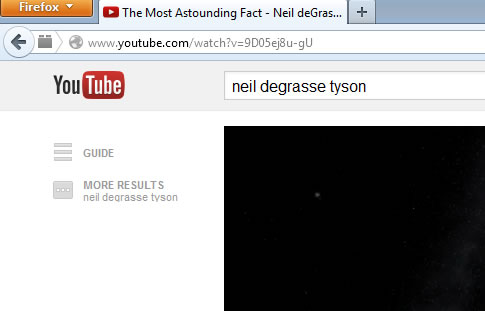
 In a new YouTube video series, one technology expert is flipping ed-tech professional development for educators by showing them how to flip their own classrooms even when students do not have home internet access. Flipped learning, a popular teaching technique used in many schools, occurs when direct instruction is moved from the group teaching space to the individual learning environment. Class time is used for higher-order, active problem solving by students in one-to-one or small group interactions with the teacher. So far, however, flipped learning has relied on students’ at-home internet access, which determines their ability to watch videos recommended, or created, by teachers. (Next page: How to flip without home internet access) Shannon Holden, an ed-tech enthusiast and veteran teacher and administrator who created newteacherhelp.com, students don’t need at-home internet access, as long as their teacher has a little technology know-how. “It all happens thanks to a USB drive,” explained Holden. “The excuse of ‘our kids don’t have the internet so we can’t flip the classroom’ is gone. If we get inventive enough, 100 percent of kids will be able to participate in the process. According to Holden, software called aTube Catcher allows users to download all kinds of videos from the internet, such as videos from YouTube, Khan Academy, Vimeo, and more. First, educators should go to the video they’d like to select. For example, if the video is housed on YouTube (from the educator or otherwise), click on the video, then highlight and copy the web address of the video.
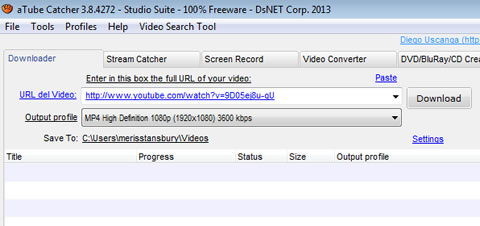
  Next, educators should go into their aTube Catcher software and paste the link in the box provided and choose “MP4” as the video format.
  Hit ‘download’ and the video will covert within the software, which might take a few minutes.
 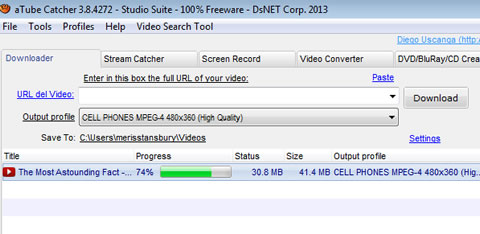 An icon will then appear on the educator’s desktop once the video is downloaded, or will appear in the designated area aTube Catcher has indicated within the software; for example, this could appear in the My Videos folder.
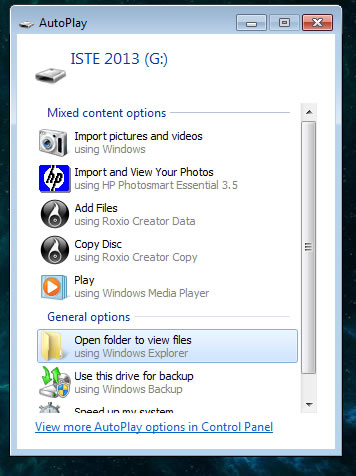
 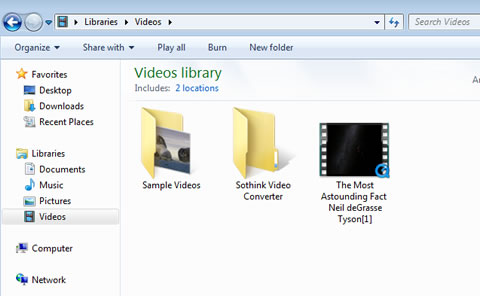 (Next page: Using the USB and Holden’s video) Now it’s time to use the USB. Plug the USB into the USB port on the computer. If the USB file folder does not open automatically on the screen, look for the USB folder under the ‘Start’ menu on the computer, then under ‘Computer’ and ‘Open All Files.’
  Drag the video from your computer files onto your USB drive. Educators can do this by simply dragging and dropping. Before dragging and dropping
 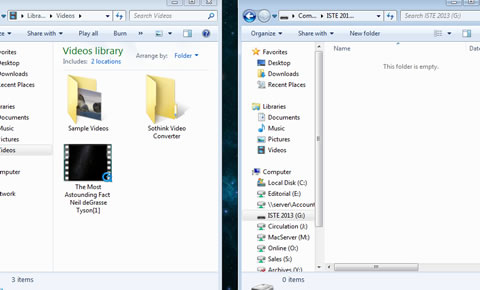 After
After 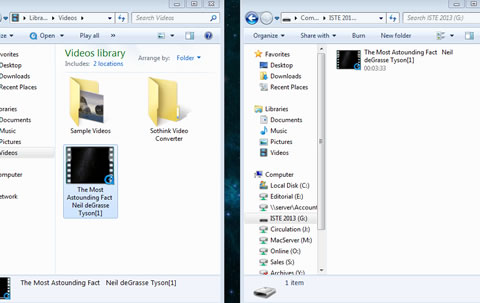 The USB will automatically save the video. Click ‘safely remove hardware’ from the bottom left-hand corner of the computer screen and the USB stick now has the video. Educators can now give students the video to watch through their designated USB sticks. “If a student doesn’t have a computer, a lot of the times that’s okay, too,” said Holden. “Many of the Blu-Ray and DVD players from the last three years have USB ports, as well as the backs of most TV sets. Xbox 360s, PlayStation 3 and 4s also have USB ports, as well as other video game consoles.” Holden’s video also shares important educators resources to help with the implementation of flipped learning, as well as a preview of what’s to come on his other YouTube professional development series on flipping the classroom. Holden’s video: [field name=iframe2]

- #4: 25 education trends for 2018 - December 26, 2018
- Video of the Week: Dealing with digital distraction in the classroom - February 23, 2018
- Secrets from the library lines: 5 ways schools can boost digital engagement - January 2, 2018
Comments are closed.